
 See Our Latest Article on HelloNation
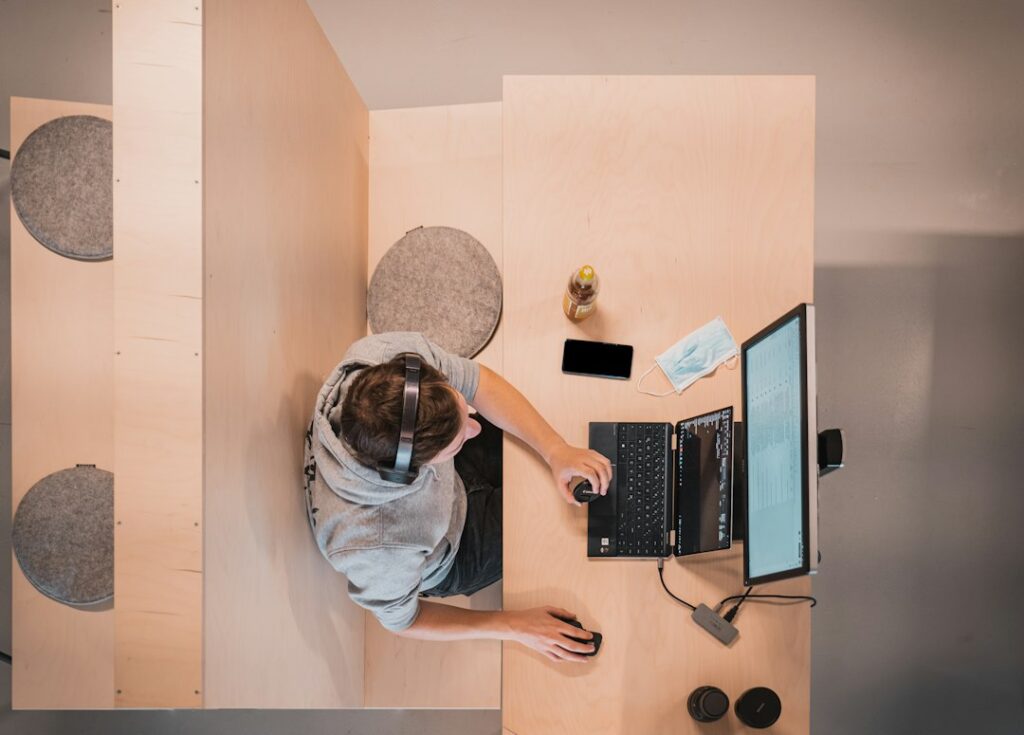
Working from home can make it easier to shift between a desk, kitchen table, couch, and recliner. That flexibility is convenient, but it can also place the neck, shoulders, back, and wrists in awkward positions for hours at a time. Improving posture does not require sitting rigidly or buying expensive equipment. The goal is to create a setup that supports a neutral position and encourages regular movement.
What does good posture look like while working?
Good posture is a balanced, comfortable position in which the head is generally aligned over the shoulders, the shoulders are relaxed, and the spine is supported without excessive rounding or arching.
A useful seated position includes:
- Feet resting flat on the floor or on a stable footrest
- Knees bent comfortably, usually near a right angle
- Hips level with or slightly higher than the knees
- Lower back supported by the chair or a small cushion
- Elbows close to the body
- Forearms roughly parallel to the floor
- Wrists kept relatively straight
- Head facing forward instead of turned or tilted toward the screen
This position should not feel forced. Even a well-arranged workstation can become uncomfortable if the body stays still for too long.
How should a home computer be positioned?
The screen, keyboard, and chair should be arranged around the person rather than forcing the body to adapt to the furniture.
Place the monitor directly in front of the body so the neck does not rotate repeatedly. The top of the screen should be at or slightly below eye level for many users. The monitor should be far enough away to read without leaning forward, commonly about an arm’s length, although vision needs and screen size may change that distance.
A laptop often creates a challenge because its screen and keyboard are attached. Raising the laptop screen may improve neck posture but can lift the keyboard too high. Lowering the laptop to reach the keyboard may cause the head and upper back to bend forward.
For longer work sessions, a separate keyboard and pointing device can allow the screen to be raised while the hands remain at a comfortable height. If additional equipment is not available, alternate between tasks and positions rather than remaining hunched over the laptop for the entire day.
What chair adjustments help reduce slouching?
A chair should provide support without pressing into the backs of the knees. Adjust the seat so both feet can reach the floor, or use a firm footrest if the desk height requires the chair to be raised.
The backrest should support the lower and middle back. Sitting at the very front edge of a chair often removes that support and encourages the trunk to collapse forward. At the same time, leaning heavily into a reclined chair while reaching toward the keyboard can create strain in the shoulders and wrists.
Armrests may help if they allow the shoulders to remain relaxed and the elbows to stay near the sides. If armrests push the shoulders upward or prevent the chair from moving close enough to the desk, they may need to be lowered or avoided.
A folded towel or small cushion can provide temporary lower-back support when a chair is too flat. It should improve comfort without pushing the body so far forward that the feet no longer rest securely.
How often should someone change position?
There is no single perfect posture for an entire workday. The body generally tolerates a variety of comfortable positions better than one fixed position maintained for hours.
Try to change position before discomfort becomes intense. Short movement breaks can include:
- Standing while reading or making a phone call
- Walking briefly between tasks
- Rolling the shoulders gently
- Moving the neck through a comfortable range
- Stretching the calves, hips, or chest
- Alternating between sitting and standing when possible
A brief pause every 20 to 30 minutes can help interrupt prolonged screen viewing and forward-head posture. Longer movement breaks are useful at least once every hour, especially during days filled with meetings or computer-based tasks.
During winter in Bath, indoor work areas may be arranged around heat sources, windows, or rooms that are easier to keep warm. That can lead to working from a couch or a dining chair for convenience. Keeping a stable work surface available, even in a smaller room, can make it easier to maintain better alignment during colder months.
Why does posture often worsen during video calls?
Video calls encourage people to look at their own image, lean toward the screen, or remain still for long periods. A camera placed too low can make the head angle downward and exaggerate rounding through the upper back.
Raise the camera so it is close to eye level. The screen should remain centered rather than off to one side. If a meeting does not require constant viewing, consider standing, walking during an audio portion, or shifting to a supported position.

Long calls can also cause the shoulders to creep upward, particularly when a phone is held between the ear and shoulder. Use a headset, speaker setting, or another hands-free option when practical.
Can posture cause neck or back pain?
Poor workstation positioning can contribute to muscle fatigue, joint irritation, headaches, and discomfort in the neck, upper back, lower back, shoulders, hands, or wrists. However, pain does not always come from posture alone. Sleep position, physical activity, stress, previous injuries, vision problems, and underlying health conditions may also play a role.
Posture should be viewed as one part of a broader routine. Regular walking, general strength, adequate sleep, and varied movement can support the body during desk work. Gentle exercise should not cause sharp, radiating, or progressively worsening pain.
When should work-related discomfort be evaluated?
Occasional stiffness that improves after changing position is common. More persistent or concerning symptoms deserve attention, especially if they interfere with normal activities.
Seek medical guidance for pain that:
- Continues or worsens despite reasonable changes to the workstation
- Travels into an arm or leg
- Causes numbness, tingling, or noticeable weakness
- Follows a fall, collision, or other injury
- Occurs with fever, unexplained weight loss, or severe night pain
- Is accompanied by loss of bladder or bowel control
A chiropractor, primary care clinician, physical therapist, or other qualified health professional may help determine whether symptoms are related to workstation habits or require a different type of evaluation.
A simple home workstation check
Before beginning work, take a few seconds to ask:
- Is the screen centered and high enough to avoid constant neck bending?
- Are the shoulders relaxed?
- Are the elbows close to the body?
- Are the wrists straight rather than bent upward?
- Are the lower back and feet supported?
- Can the body change position without moving the entire workstation?
If several answers are no, adjust one feature at a time. Small changes to screen height, chair support, keyboard distance, lighting, or break habits can make the workday more comfortable without requiring a complete office makeover.